

TrueChem
Is there a list of TrueChem variables?
Yes! Click Here for a categorized list of TrueChem variables.
What is TrueChem’s Placard System?
TrueChem’s Placard System provides a way to manage & print Tank Placards, the informative signs usually displayed on or near each tank in your facility. Below is an example of an 8.5” x 5.5” Tank Placard. TrueLogic can customize your placard template in size, layout and content to suit your specific needs. Click here to view other Tank Placard Examples.
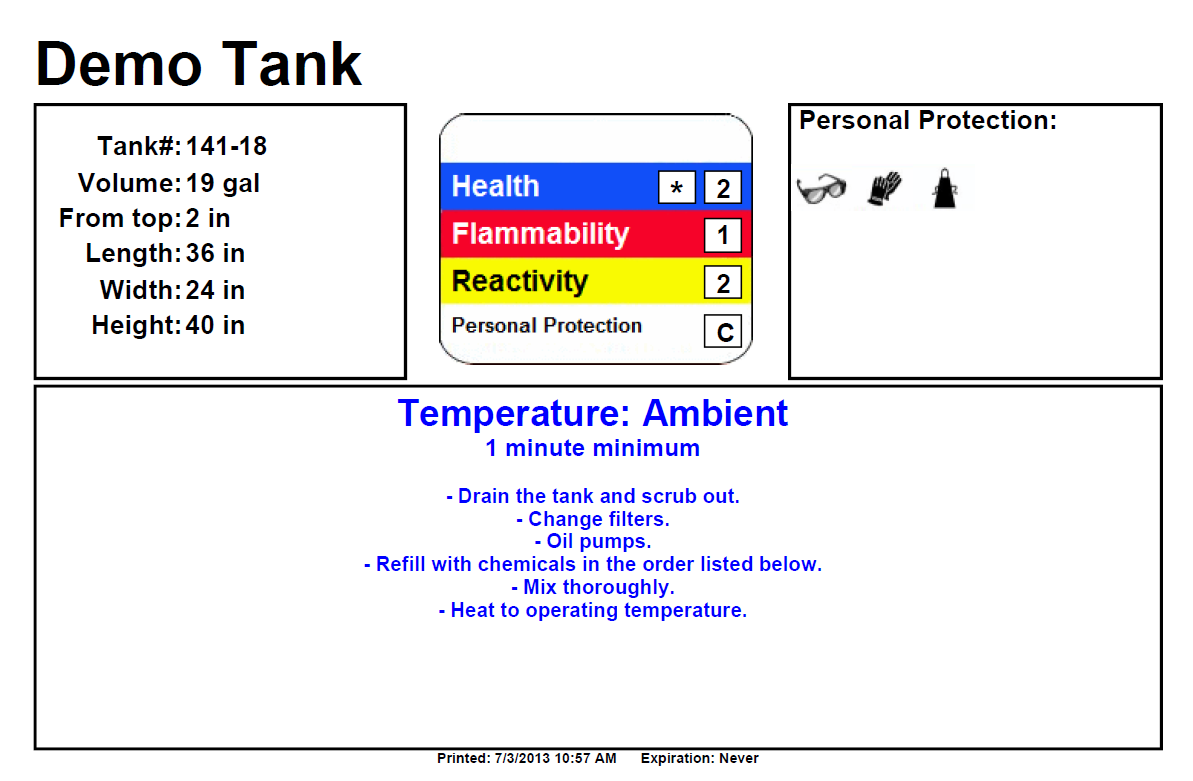
Example TrueChem Tank Placard
(click for larger view)
To print one or more Tank Placards, click the Document Manager icon on your TrueChem System Toolbar (see arrow 1 in figure below). Then select Tank Placards from the View option list (arrow 2). Select one or more rows with the mouse, and click the print button or the preview button located above the list (arrow 3).
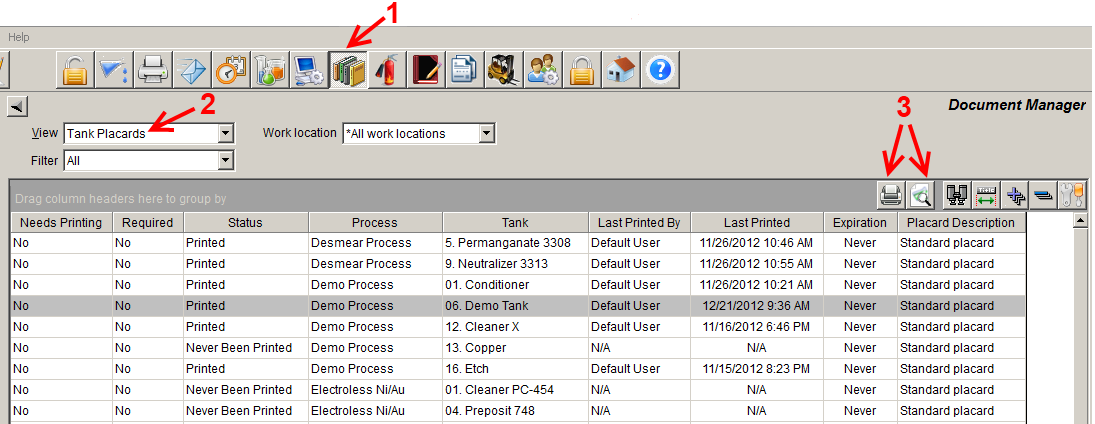
TrueChem Document Manager
(click for larger view)
Required vs Not Required
If a TrueChem Tank Placard is “Required”, two things can happen:
- An expiration date/time for printing the placard can be set. Once that time has passed, the “Needs Printing” column in the above figure will be set to “Yes”. An email can optionally be sent to a TrueChem user indicating that a current Tank Placard needs to be printed.
- A warning will be given at the close of Tank Setup if a parameter displayed on the Tank Placard was changed (e.g. volume, dimension, etc.). In such cases, the “Needs Printing” column in the above figure will be set to “Yes”.
Currently, all Tank Placards use one Placard template (layout) and all are either Required or Not Required. The default is Not Required but Placards still be printed from the Document Manager. Not Required Placards do not have an expiration date and a warning will not be displayed when items on the Placards are changed in Tank Setup.
Contact TrueLogic Company’s Technical Support if you would like your Placard template or any of the default settings related to TrueCham’s Placard System modified. Technical Support can be reached at (972) 423-9100, option 2.
How do I install TrueChem on another computer?
Install TrueChem using the original program CD or by executing the setup program located on your network.
If neither of these tools are available, contact the system administrator or TrueLogic Company for further assistance.
How do I schedule a {Remake}?
There are two types of schedules in TrueChem – Result and Other.
Result schedules are used to schedule an analysis for a certain Result item.
To Schedule other actions, create an Other schedule. This will allow you to define a specific action to take on a scheduled basis. On the Schedule Tab in Object Setup, click the Add button on the Other Schedule section to create a new schedule. Choose a type, either Scheduled Add or {Remake} and define any additional information about the schedule (description, priority, frequency, etc.). This item will show up in the schedule log and can be completed by highlighting the row and clicking the Do Now button.
How do I move or copy {Objects} from one {Group} to another?
To copy an {Object}, right-click on the {Object} in the Tree View and select Copy. Then, right-click on the destination {Group} and select Paste. To move an {Object} from one Group to another, left-click and hold on the {Object} (you will see the cursor change). Then, drag-and-drop the {Object} on the destination {Group} name.
Can I create a global rule that could be applicable to several {Objects}?
Yes. Creating global rules gives the ability to define the rule one time and apply these rules to multiple result or adjustment items.
To create a global rule, create a rule set, then add rules to the rule set. Once you have created the rule set and its rules, add this rule set to any adjustment or result item.
To create a rule set:
1. Click on the System Setup button
2. Click on the Rules tab.
3. In the Rule Set field, select.
4. The Create New Rule Set window opens.
5. Enter a name for the new rule set and click on the OK button.
To add rules to a rule set:
1. Click on the System Setup button
2. Click on the Rules tab
3. In the Rule Set field, select the rule set you want to modify
4. Click on the Add button.
5. The Rule Setup window opens.
6. Create the rule in the Rule Setup window and click on the OK button.
7. The new rule is displayed in the Rule Set Details
To add a rule set to a result or adjustment item:
1. Select the appropriate {Object} in the tree.
2. Click on the Object Setup button
3. Click the Test tab
4. Click on the test item you want to modify and click the modify button, or create a new test item by clicking the add button.
5. If the test item is a result or adjustment item, you can add the rule set or a custom rule by clicking the add button to the Apply Rules section at the bottom.
What formulas does TrueChem use for SPC calculations?
Here are the calculations used by TrueChem:
  |
 |
 |
 |
 |
How do I change databases?
There are two ways to change databases.
1. Click the Change Database button on the Database tab in System Setup. This opens a file browser and allows selection of the new database.
(NOTE: The new database will be used the next time you start TrueChem.)
2. TrueLogic also has a free utility that allows the definition of an unlimited number of database locations combined with a custom description. When TrueChem is re-started, connection to the newly selected database is available. Please contact TrueLogic Company to obtain this utility.
How do I schedule an Add?
There are two types of schedules in TrueChem – Result and Other.
Result schedules are used to schedule an analysis for a certain Result item.
To Schedule other actions, you will need to create an Other schedule. This allows definition of a specific action to take on a scheduled basis. On the Schedule Tab in {Object} Setup, click the Add button on the Other Schedule section to create a new schedule. Choose a type, either Scheduled Add or {Remake} and define any additional information about the schedule (description, priority, frequency, etc.). This item will show up in the schedule log and can be completed by highlighting the row and clicking the Do Now button.
Can I combine {Reports} from multiple {Objects} into a single {Report}?
Yes. To configure {Group} level {Reports}:
1. Select the appropriate {Group} from the tree
2. Click on the {Group} setup button
3. Click on the {Report} tab
4. Click the Use {Group} level {Reports} check box
5. Select a {Group} template and an {Object} template
6. Select an allotted time from the combo boxes
How do I customize email subjects and messages?
You can use TrueChem variables to customize email messages and subjects. Using variables, you can define a generic subject and message by clicking the Message button next to the Send E-mail To combo box.
The following is an example of a custom message on a rule of a result item:
| Example setup SUBJECT: [RST.NAME] was out of spec MESSAGE: Process: [GRP.NAME] Tested at: [DATE] [TIME] |
Processed example SUBJECT: mL/L of H2SO4 was out of spec MESSAGE: Process: #01 Cleaner Process Tested at: 05/14/2014 2:36 PM |
This message and subject setup could be used on any result item. The subject and message would contain the values of of the selected result items from the attached rule. Click here for a list of TrueChem variables.
What system requirements are necessary to run TrueChem?
TrueChem System Requirements*
For client workstations, we recommend:
- Windows 8, 8.1 and 10
- 2.3 GHz multi-core processor or higher
- 4 GB ram or higher
- 1280 x 1024 screen resolution or higher
For tablet computers:
- TrueChem IS compatible with Windows for tablets, including Windows 8, Windows 8 Pro, etc.
- TrueChem IS NOT compatible with tablets running Windows RT
- See above for recommended hardware specifications
For TrueChem DataServer:
- DataServer is a client installation of TrueChem running in “DataServer Mode”
- DataServer hardware requirements are the same as the requirements for the client computers listed above
- DataServer requires a workstation (physical or VM) that is operational 24/7
- DataServer requires a user session (does not run as a Windows Service)
- DataServer requires the host user session to automatically start in the event of a workstation re-start
For Microsoft SQL Server:
- Microsoft SQL Server version 2005 through 2019 (including “Express” versions)
- 2.3 GHz dual-core processor or higher
- 4 GB ram or higher
- 20+ GB hard drive space
Here are some answers to a few common pre-installation questions:
- TrueChem is compatible with Windows 8, 8.1 and 10
- TrueChem is compatible with 32-bit and 64-bit versions of Windows
- TrueChem is compatible with Windows Server versions 2003 and higher (2008, 2008r2, 2012, etc)
- TrueChem is NOT compatible with Windows RT
- TrueChem is compatible with Windows Terminal Services and Citrix
*These requirements may vary based on the number of TrueChem users, number of tests entered, etc.
If you have any questions or need help in any way, please contact technical support at (800) 448-2548, option 2.
How can I send TrueChem email alerts as text messages?
Here is a list of cell phone company’s email-to-text addresses for SMS format.
This format is limited by most carriers to include a maximum of 140 – 160 characters.
Longer messages may be split into multiple parts.
| Alltel | <10 digit number>@message.alltel.com | |
| AT&T | <10 digit number>@txt.att.net | |
| Bell Canada | <10 digit number>@txt.bell.ca | |
| Boost Mobile | <10 digit number>@myboostmobile.com | |
| Cingular | <10 digit number>@cingularme.com | |
| Metro PCS | <10 digit number>@mymetropcs.com | |
| Rogers Canada | <10 digit number>@pcs.rogers.com | |
| Sprint | <10 digit number>@messaging.sprintpcs.com | |
| T Mobile | <10 digit number>@tmomail.net | |
| US Cellular | <10 digit number>@email.uscc.net | |
| Verizon | <10 digit number>@vtext.com | |
| Virgin Mobile | <10 digit number>@vmobl.com | |
| Republic Wireless | <10 digit number>@text.republicwireless.com |
The following carriers also offer this capability in an MMS format. This format
offers for larger content which may include multimedia formatted information such
as photos, video, etc.
| Alltel | <10 digit number>@mms.alltelwireless.com | |
| AT&T | <10 digit number>@mms.att.net | |
| Boost Mobile | <10 digit number>@myboostmobile.com | |
| Cricket Wireless | <10 digit number>@mms.cricketwireless.com | |
| Project Fi | <10 digit number>@msg.fi.google.com | |
| Sprint | <10 digit number>@pm.sprint.com | |
| T Mobile | <10 digit number>@tmomail.net | |
| US Cellular | <10 digit number>@mms.uscc.net | |
| Verizon | <10 digit number>@vzwpix.com | |
| Virgin Mobile | <10 digit number>@vmpix.com |
Replace <10 digit number> referenced above by the area code, exchange, and number
with no spaces or other characters. For example: a Verizon phone with the cell
number of (212) 555-1212 would result in an address of [email protected].
If your carrier is not listed above, the list available here may help you.